AI Erase and Replace: Change Surfaces, Objects, and Styles in Any Photo
AI erase and replace tools don't just remove objects — they swap surfaces, change wall colours, replace furniture styles, and transform spaces entirely. Here's how each tool works and when to use which.
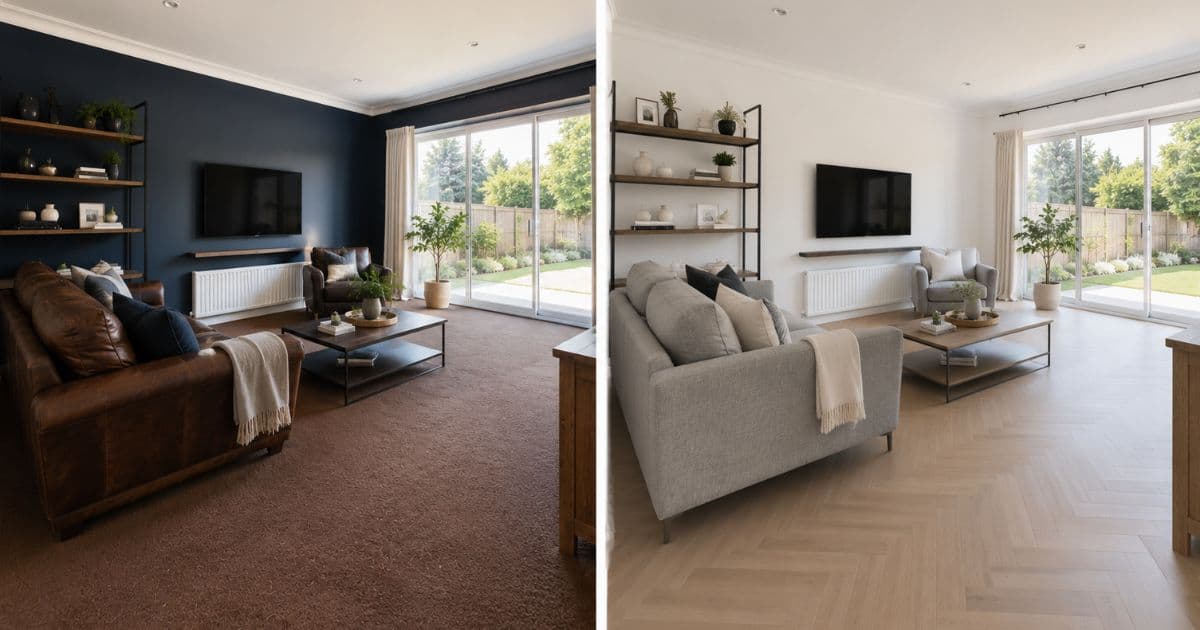
"Erase and replace" describes a broader capability than most people realise. In real estate photography, it doesn't just mean removing a bin from a driveway — it means swapping a dated wall colour for a fresh one, replacing dated carpet with timber flooring, removing existing furniture and generating styled alternatives, or transforming an entire room's design direction without changing the architecture.
Modern AI has a different tool for each version of "replace." Understanding which to use — and when — determines whether you spend 10 seconds or 10 minutes on a photo fix.
The Four Types of AI Erase and Replace
Each type solves a different problem. Match the tool to what actually needs changing.
1. Erase Only (Remove Without Replacing)
The AI removes an object and reconstructs the background — wall, floor, sky, lawn — as if the object was never there. No new content is placed in the removed area.
Use cases: Bins in driveways, cables on walls, stains on carpet, clutter in background shots, parked cars, garden equipment.
Homai tool: Erase Objects →
2. Erase and Replace Surface Colour
The AI removes the current colour or material of a surface — a wall, floor, bench, or fitting — and replaces it with a specified colour or finish. The texture and material quality of the surface is preserved; only the colour changes.
Use cases: Testing paint colours before painting, showing buyers what a room looks like in different tones, presenting alternative colour schemes in listings, dark-to-light wall conversions for better listing photo brightness.
Homai tool: Change Surface Color →
3. Erase and Replace Furniture (Restage a Room)
The AI removes existing furniture from a furnished room and replaces it with newly generated furnishings in a specified design style. The architecture stays. The furniture is completely replaced.
Use cases: Occupied properties with dated or mismatched furniture, tenanted properties before listing, vendor properties where owners won't physically stage.
Homai tool: Remove & Replace Furniture →
4. Erase and Replace Style (Apply a Design Direction)
The AI applies a complete style transformation — keeping the room's architecture and layout but changing the overall aesthetic. Walls, furnishings, materials, and lighting direction can all shift while the fundamental room proportions remain.
Use cases: Showing how a room would look in a different style (Modern vs Coastal vs Luxury), creating style variations for different buyer segments, presenting design-forward options for new developments.
Homai tool: Apply Style → / Interior Redesign →
When to Use Which Tool
| What You Want to Change | Right Tool |
|---|---|
| Remove a specific object, keep the rest | Erase Objects |
| Change wall or surface colour | Change Surface Color |
| Replace all furniture in an occupied room | Remove & Replace Furniture |
| Transform the entire room's design direction | Interior Redesign or Apply Style |
| Stage an empty room | Virtual Staging |
| Change exterior style or landscaping | Exterior Redesign |
The Erase and Replace Workflow for Real Estate
The right order makes each tool's output cleaner.
Step 1: Erase unwanted objects first. Before running any replacement or staging tool, use Erase Objects to remove clutter, cables, bins, and personal items. A clean photo produces better results from every subsequent tool — because the AI has less noise to work around.
Step 2: Change surfaces if needed. If the wall colour or floor material detracts from the listing, use Change Surface Color on the cleaned photo. Swap a dark feature wall to light grey, or visualise how engineered oak flooring would look in place of existing carpet.
Step 3: Replace furniture if the existing pieces don't work. If the room has furniture that undermines the listing, use Remove & Replace Furniture to clear and restage. Select the staging style based on the target buyer profile.
Agent takeaway: Running tools in this sequence produces the best output at each stage. Erase first, then change surfaces, then restage — each step gives the next tool a cleaner canvas.
AI Erase and Replace vs Manual Photo Editing
The comparison that explains why the market has shifted.
| Method | Time per Change | Skill Required | Cost |
|---|---|---|---|
| Photoshop erase + retouch | 20–60 min | High | Software + editor time |
| Manual colour change in Lightroom | 10–30 min | Medium | Software time |
| Outsourced retouching service | 24–48 hrs | None | $15–$30+ per image |
| AI erase and replace (Homai) | Seconds–1 min | None | Included in plan |
For listing production at volume, the manual path is no longer competitive. AI erase and replace handles changes that previously required editing skill in seconds — at listing-ready quality.
Surface Change: The Most Underused Option
Agents who know about erase-only miss the surface-change capability.
Changing a wall colour in a listing photo is the most impactful single edit available. A dark wall that photographs poorly can become a bright neutral. A coloured feature wall that polarises buyers becomes a universally appealing white.
The AI doesn't just flood-fill the wall with the new colour — it preserves the surface texture, shadow variation, and lighting behaviour of the wall so the result looks photographically accurate. The changed surface reflects light correctly and handles corners, edges, and adjacent surfaces naturally.
Common surface changes for listing photos:
- Dark walls → light neutral (increases perceived room size and brightness)
- Coloured feature walls → white or greige
- Dated brown or beige carpet → light timber or stone visualisation
- Green or dated kitchen cabinetry → white or sage
- Orange-toned timber floors → cool white oak
Style Replacement: One Room, Multiple Buyer Segments
The same room staged in different styles reaches different buyers.
For new developments, high-end residential listings, or properties targeting multiple buyer segments, AI style replacement generates different versions of the same room in different design directions — from a single base photo.
A living room staged in Hamptons appeals to family buyers. The same room in Japandi appeals to young professionals. The same room in Luxury speaks to premium buyers. Three staging outputs from one photo, each targeted at a different buyer.
Homai's 37 staging styles cover every major residential buyer segment:
- Family: Hamptons, Farmhouse, Coastal
- Young professional: Modern, Japandi, Industrial, Scandinavian
- Luxury: Luxury, Art Deco, Parisian
- Short-term rental: Coastal, Tropical, Japandi
- Broad appeal: Warm Contemporary, Minimalist, Nordic
Frequently Asked Questions
What's the difference between erase and erase-and-replace?
Erase removes an object and fills the background behind it. Erase-and-replace removes something and generates new content in its place — a different colour, material, furniture set, or style direction. Both operations start with a removal; they differ in what the AI puts in its place.
Can I change the floor material, not just the colour?
Yes — Change Surface Color can swap floor materials: carpet to timber, timber to stone, dated tile to modern tile. The AI handles texture and material changes, not just colour shifts.
How much of the room changes with style replacement?
Style replacement (Interior Redesign, Apply Style) changes furniture, soft furnishings, accessories, and atmospheric elements like lighting quality. Permanent architecture — walls, floors, ceilings, windows — is always preserved. The room's shape and volume never change.
Does erase and replace work on exterior photos?
Yes — Erase Objects handles exterior photo cleanup (bins, vehicles, garden equipment) and Exterior Redesign handles full facade style replacement. Change Surface Color works on exterior walls and renders.
What resolution is the output?
All Homai outputs are 4K (4096×2731) — print-ready for brochures, signboards, and portal uploads.
Change What Needs Changing — Leave the Rest
Every AI erase and replace operation in Homai is non-destructive: permanent architecture is always preserved. Only the elements you choose to change are touched.
Try any tool free → homaihq.com
Related: How to Remove Objects from Real Estate Photos | How to Change Wall Colour with AI | Virtual Staging for Real Estate
Written by Homai
AI staging and interior design for real estate agents
Try Homai
Try AI erase and replace free
Upload any listing photo and change what needs changing — objects, surfaces, furniture, or full room styles. No credit card required.