AI Paint Visualizer
See exactly how any paint colour looks on your walls before you buy a single drop. Upload a photo of your room, pick a colour, and preview it with realistic lighting and shadows preserved — in seconds.
The best colour is the one you've seen in your room first — preview any paint shade against your actual walls, with your actual lighting, before making any purchase decision.
Let's configure your paint visualizer
Upload a photo of the room you want to repaint
JPG, PNG or WEBP · Any room type — walls clearly visible
Plans from $49/month · Cancel anytime
Related tools you might like:
or explore our 30+ other tools to get the exact result you want
Explore our toolsPreview Any Paint Colour in 4 Steps
Upload your room photo
Take or upload a photo of the room you want to repaint. Any angle works — just make sure the walls are visible.
💡 Photos taken in natural daylight produce the most accurate colour previews. Dark or heavily artificial-lit rooms will still work but may show slightly different tones than in-person.
Choose your paint colour
Enter a hex code, choose from our curated colour palettes, or describe the shade you're considering. You can test multiple colours by generating multiple previews.
AI previews the colour
The AI applies your chosen colour to the walls while preserving the room's original lighting, shadows, and depth — for a photorealistic, accurate preview.
Compare and decide with confidence
Use the before/after slider to compare. Generate multiple colours to narrow down your choice — then buy with confidence.
Why Paint Colour Decisions
Go Wrong — and How to Avoid It
Paint colour selection is notoriously unreliable when done from chips and test pots. Chips are too small to represent how a colour reads across a full wall. Test pots change in colour depending on when you look at them, the weather, and the time of day. The furniture and flooring in your room influence how a colour reads against them — in ways that can't be predicted from a sample. The only reliable method is seeing the exact colour on your actual wall — which is exactly what Homai's paint visualizer provides.
Photorealistic Colour Preview —
Not a Filter or Flat Overlay
The technical difference between a good colour preview and a bad one is how the tool handles the original photo's lighting. A flat colour overlay loses all the shadow variation and depth that makes the preview look believable. Homai's AI analyses the light map of the walls in your photo and applies the new colour respecting those lighting conditions — so you see the colour as it would actually appear: lighter near the window, slightly darker in the corner, with natural shadow variation across the surface.
See Every Colour in
Your Actual Room
Try neutrals, bolds, and everything in between against your real walls — before committing to a single litre of paint.
Neutrals and Warm Whites
The Most-Regretted Colour Group
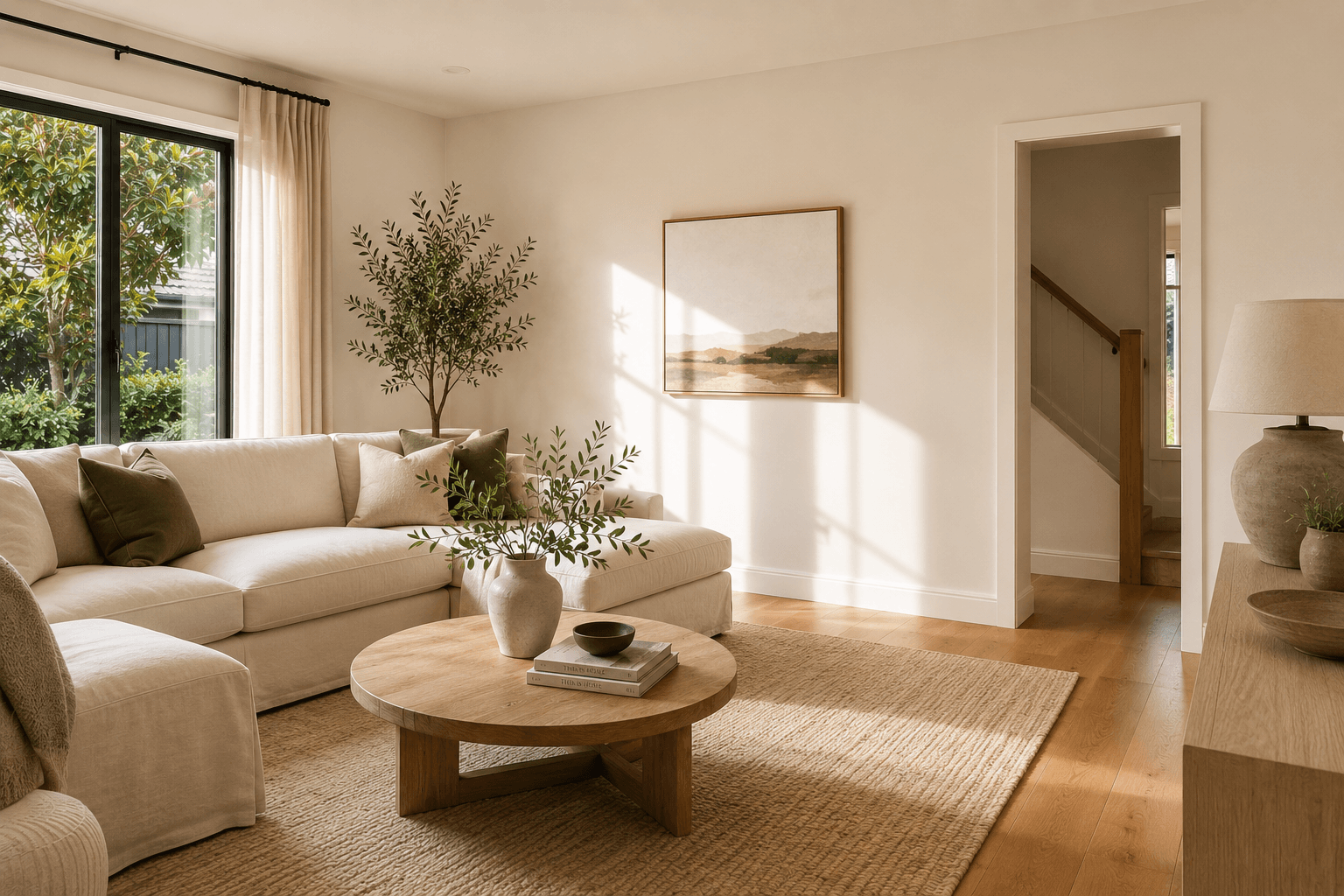
The neutral and warm white category — covering everything from pure whites to greiges, warm creams, and soft sands — is where the most paint regret happens. These colours look almost identical on chips and test pots but read very differently at scale on a wall. The warm undertones in Dulux Antique White USA look nothing like the cool undertones in Vivid White once you're standing in the room. Preview them both — same room, same photo — and make a decision based on what you actually see.
- Compare warm whites, cool whites, and off-whites in your actual room
- Undertones are visible at wall scale — what chips and test pots can't show you
- Generate multiple previews to find your perfect neutral before any commitment
Bold and Dark Colours
Test Before You Commit
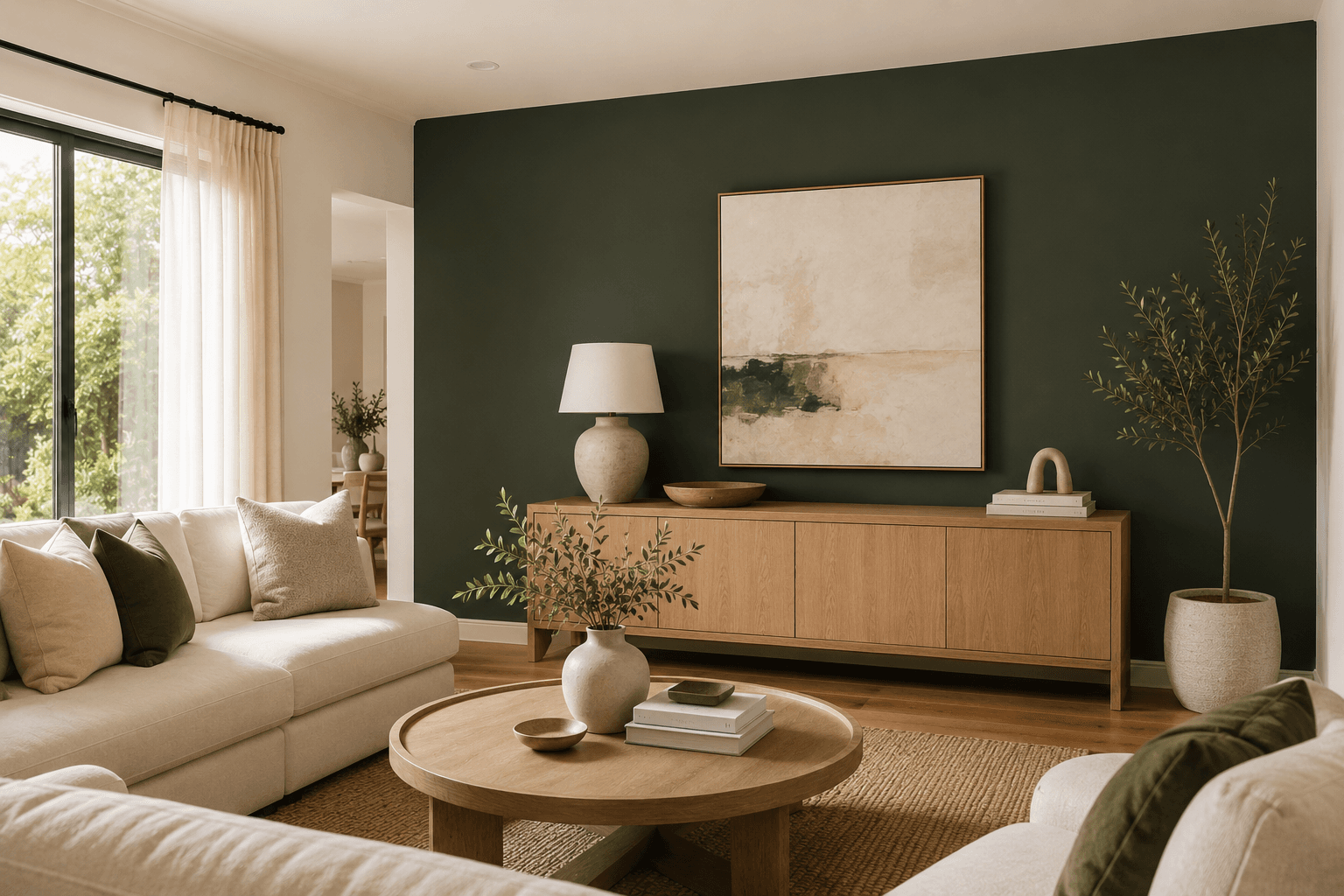
Dark greens, navies, deep charcoals, and terracotta — bold colours make a dramatic impact but are the most difficult to remove if you get them wrong. Repainting a dark colour requires multiple coats and significant cost. Before committing to any bold shade, preview it in your actual room to see whether the impact matches your expectations — and whether it works with your flooring, furniture, and natural light.
- Test deep greens, navies, and charcoals before committing to a difficult repaint
- See how bold colours interact with your room's natural light and furniture
- Accent wall previews — test whether one wall or all walls produces the right effect
AI Colour Tools for Every Space
Paint colours, surface changes, full redesigns, renovation previews — explore the full Homai toolkit to visualise any change to any property before committing.
Frequently Asked
Questions
Yes — each colour preview uses 1 credit. You can generate as many colour options as you like, using the same room photo each time, to compare different shades before making your decision.
Yes — enter the hex code for any paint brand colour directly. Dulux, Resene, Sherwin-Williams, Benjamin Moore, and all major brands provide hex codes for their colour ranges on their websites.
The preview is a photorealistic representation based on your room's existing lighting conditions and surface texture. For the most accurate results, use a photo taken in the lighting conditions you'll be living with (daylight vs evening lighting can look quite different).
Yes — indicate which wall you want to recolour when submitting. The AI applies the colour to the selected wall only, leaving other surfaces unchanged for accurate accent wall previews.
Both tools change surface colours. Paint Visualizer is focused on helping homeowners make paint purchase decisions — it's optimised for the consumer experience of colour selection. Change Surface Color is designed for broader real estate use — including exterior surfaces, cabinetry, and multi-surface property photos.
Explore all Homai AI tools
Every tool works on your existing listing photos — no new photography required.
Four simple steps to stage, redesign,
or transform any property
Upload any property photo and get a professional staging, redesign, or marketing result in under 60 seconds.
Upload your photo
Any room, exterior, floor plan, or sketch — JPG, PNG, or WEBP. Works with existing listing photography or smartphone shots.
- Works on rooms, exteriors, floor plans, and design sketches
- No special equipment — phone camera quality is fine
💡 For best results: well-lit spaces with a straight-on camera angle. Avoid heavy shadows or fish-eye lenses.

Choose your style or settings
Select your design style, tone, or output preferences. Each tool has its own options — staging style, colour, dusk intensity, or copy tone.
- 37+ staging and design styles available across tools
- Settings are tailored to each tool's specific output type

AI generates your result
The AI processes your input and delivers a high-resolution result in under 60 seconds. No manual editing or design experience required.
- Results in under 60 seconds — faster than any manual process
- High-resolution output — no editing or touch-up required

Download and use immediately
Your result is ready to download at full resolution. Publish directly to property portals, social media, client presentations, or print collateral.
- Full-resolution download — portal and print ready
- Use across listings, social media, brochures, and client presentations
