AI Remove & Replace Furniture
Digitally clear any room of furniture and clutter, then restage with AI-generated furnishings in your chosen style — in under 60 seconds. No Photoshop, no moving trucks.
One workflow, both steps — remove the existing furniture and restage the cleared room in any of 37 design styles without touching a single piece.
Let's configure your remove & replace furniture
Upload a furnished or cluttered room photo
JPG, PNG or WEBP · Works best on well-lit interiors
Plans from $49/month · Cancel anytime
Related tools you might like:
or explore our 30+ other tools to get the exact result you want
Explore our toolsRemove & Restage Any Room in 4 Steps
Upload your room photo
Any furnished or cluttered room photo — the AI identifies and removes all furniture and objects.
💡 For best results: well-lit rooms with a clear view of floors and walls. The AI needs visible reference surfaces.
AI clears the room
Every piece of furniture and clutter is digitally removed. The floor, walls, and ceiling are preserved exactly — only the contents change.
Choose your restaging style
Select from 37+ interior design presets — from Modern and Hamptons to Japandi and Luxury — and choose the room type for accurate furnishing.
Download and publish
Your professionally restaged room photo is ready in under 60 seconds. Download at full resolution and publish immediately.
When Standard Staging Won't Work —
Remove First, Then Stage
Virtual staging tools work on empty rooms. But many properties are occupied — filled with dated furniture, personal belongings, or clutter that distracts from the room's true proportions. Homai's Remove & Replace tool handles both problems in one step: clear the room digitally, then furnish it with a professional style that matches your buyer profile.
How AI Removes Furniture —
Clean, Photorealistic, Instant
The AI analyses every pixel in the room — identifying furniture, objects, and clutter — then reconstructs the floor, walls, and ceiling surfaces behind them using advanced inpainting. The result is a clean, neutral room with no visible seams or AI artefacts. It then furnishes the cleared room using the same staging AI powering Homai's virtual staging tool.
Stage Multiple Styles from
a Single Occupied Room Photo
One of the most powerful applications: upload a single furnished room photo, clear it, then generate the same cleared room in multiple staging styles — Hamptons for the family buyer, Japandi for the investor, Modern for the young professional. Three listing-ready photos from one shoot, without arranging a single piece of furniture.
Why Agents Use Homai Over Photoshop or Physical Decluttering
Compare AI furniture removal to traditional alternatives
See What You Can Create with
AI Remove & Replace
From cluttered occupied rooms to professionally staged listing photos — see what Homai delivers in under 60 seconds.
Occupied Rooms
Become Staging-Ready
The vendor's dated furniture, personal photos, and patterned carpets were making the listing difficult. Homai cleared the room digitally in seconds, then restaged it in a clean Modern style that showcased the room's actual proportions. The listing photo looked nothing like the property the tenants were living in — in the best possible way.
- Remove all traces of existing furniture and personal items
- Reveal the room's true size, ceiling height, and layout
- Restage immediately in any of 37 professional styles
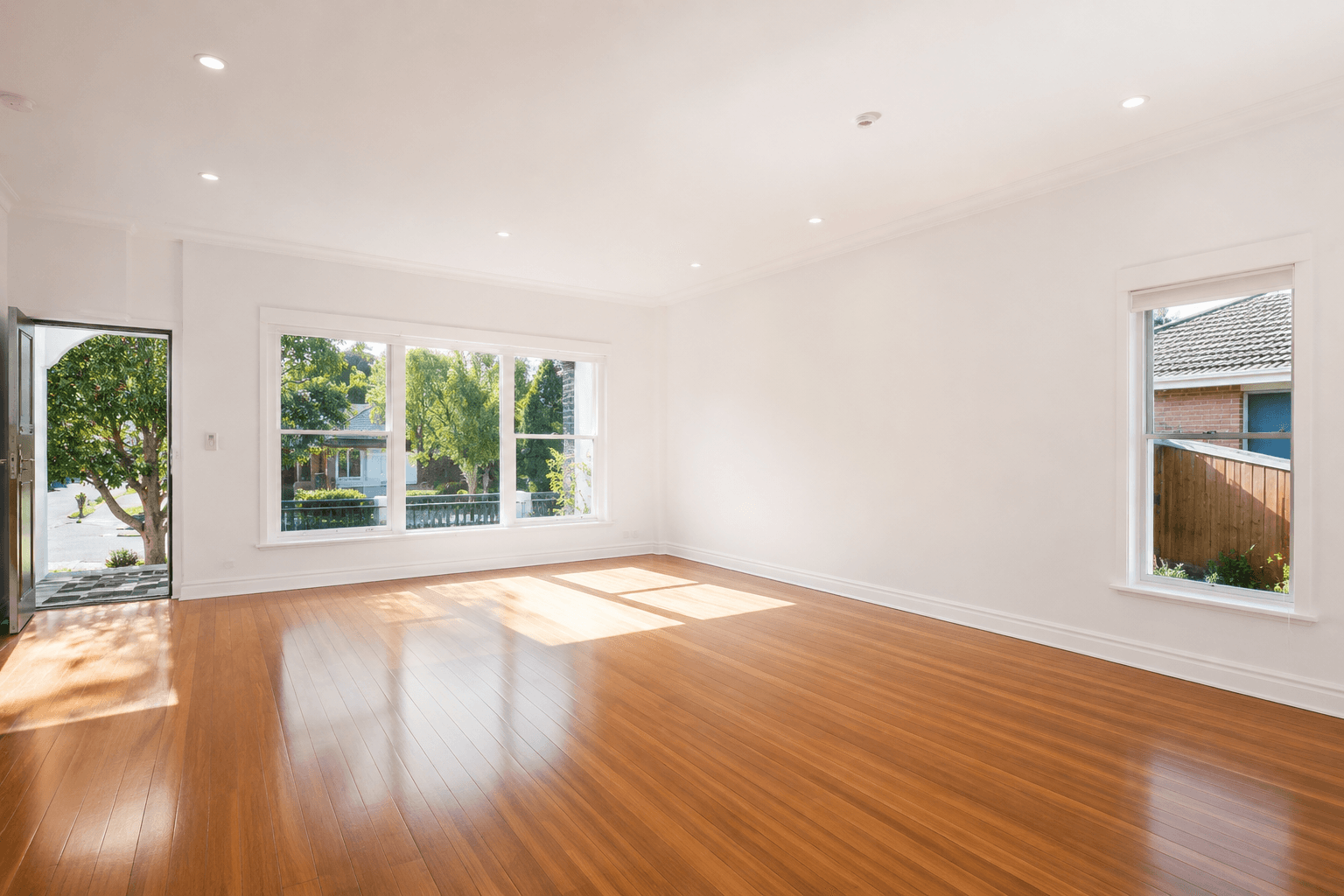
Multiple Styles from
One Cleared Room
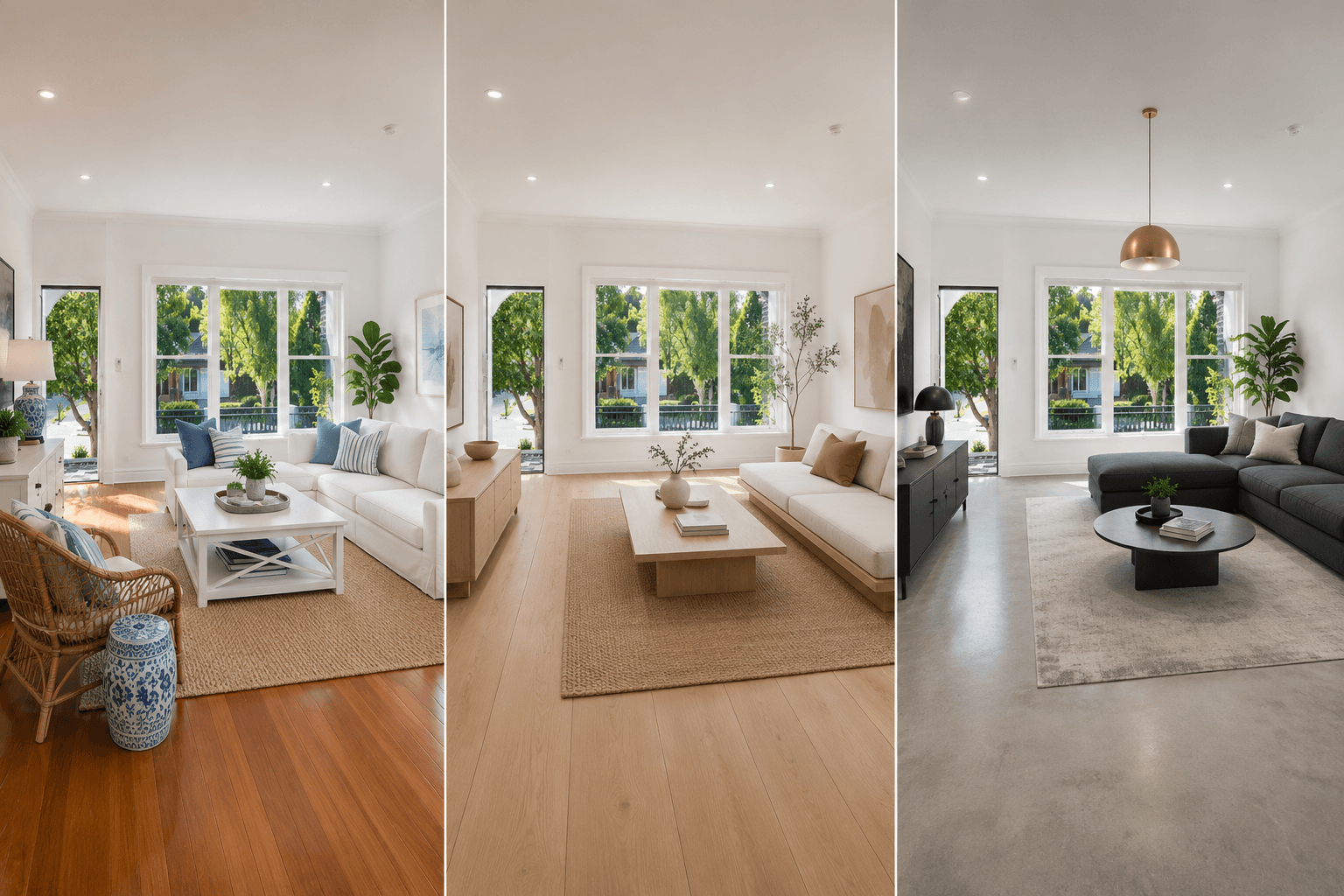
Upload a single occupied room photo, clear it, and generate it in Hamptons, Japandi, and Modern styles simultaneously. Three professionally staged listing photos from one shoot, tailored to three different buyer profiles. Show them all in the vendor presentation, or use different styles for different channels.
- Generate multiple design styles from a single cleared room
- Match staging to likely buyer — family, investor, or professional
- One upload, multiple listing-ready outputs
AI Furniture Removal for Every Listing Type
Occupied rentals, dated furnished properties, cluttered vendor homes — explore the full Homai toolkit to get every listing photo looking its best.
Frequently Asked
Questions
Yes — fully furnished rooms are exactly what this tool is designed for. The AI identifies and removes all furniture, soft furnishings, and personal items, then reconstructs the floor and wall surfaces behind them. The result is a clean, neutral room ready for restaging.
The AI uses context-aware inpainting to reconstruct the surfaces behind removed items using the surrounding texture and colour data. Floors, skirting boards, walls, and other architectural details are preserved naturally. The result is a clean, seamless room — not a photoshopped void.
Currently the tool removes all furniture and objects from the room. For selective object removal — keeping some items while removing others — use the Erase Objects tool instead.
Typically under 60 seconds from upload to download. The removal and restaging happen sequentially in a single processing pass.
Yes. After the room is cleared, you can apply different design styles by generating again — each additional style uses 1 credit. This lets you produce multiple buyer-targeted versions from a single occupied room photo.
Yes. Virtual Staging is designed for empty rooms — it furnishes a bare space. Remove & Replace is for occupied or furnished rooms — it first clears the room, then stages it. If your room is already empty, use the Virtual Staging tool directly.
Explore all Homai AI tools
Every tool works on your existing listing photos — no new photography required.
Four simple steps to stage, redesign,
or transform any property
Upload any property photo and get a professional staging, redesign, or marketing result in under 60 seconds.
Upload your photo
Any room, exterior, floor plan, or sketch — JPG, PNG, or WEBP. Works with existing listing photography or smartphone shots.
- Works on rooms, exteriors, floor plans, and design sketches
- No special equipment — phone camera quality is fine
💡 For best results: well-lit spaces with a straight-on camera angle. Avoid heavy shadows or fish-eye lenses.

Choose your style or settings
Select your design style, tone, or output preferences. Each tool has its own options — staging style, colour, dusk intensity, or copy tone.
- 37+ staging and design styles available across tools
- Settings are tailored to each tool's specific output type

AI generates your result
The AI processes your input and delivers a high-resolution result in under 60 seconds. No manual editing or design experience required.
- Results in under 60 seconds — faster than any manual process
- High-resolution output — no editing or touch-up required

Download and use immediately
Your result is ready to download at full resolution. Publish directly to property portals, social media, client presentations, or print collateral.
- Full-resolution download — portal and print ready
- Use across listings, social media, brochures, and client presentations
